Group
A group contains a selection of components. It is commonly used to represent a device (i.e. an ECU, fuse box etc). A group can be assigned a Device Part.
Creating a Group
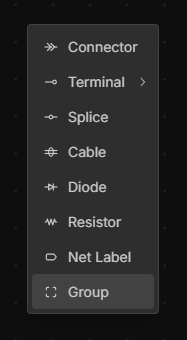
Right-click on the canvas in the Schematic or Layout view and select Group.
Creating a Group from Existing Components
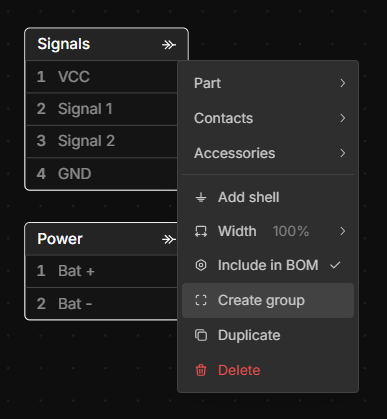
Select multiple components using Shift + left click or using marquee selection, then right-click and select Create Group to form a new group.
Adding Components to a Group
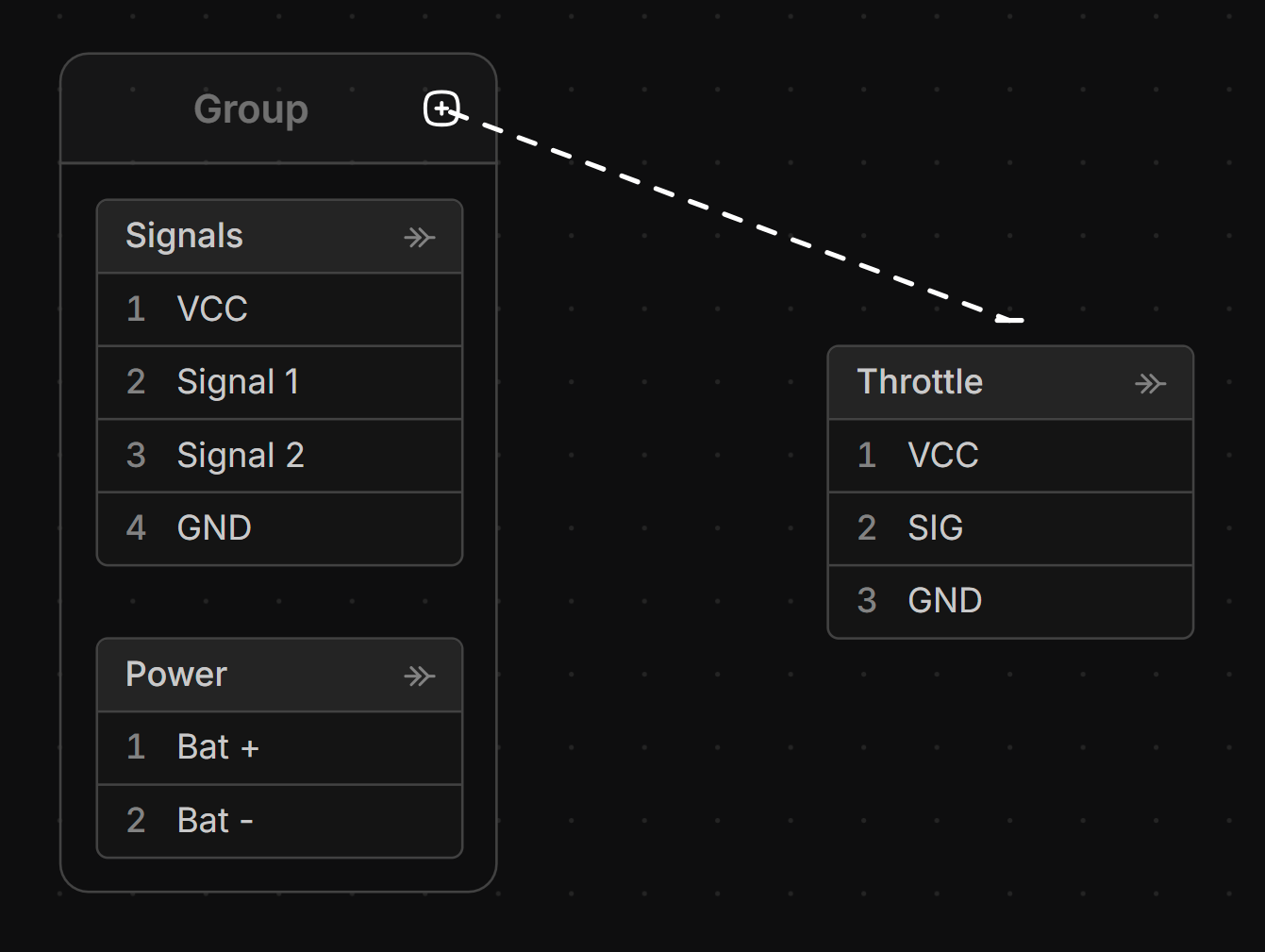
Drag from the + icon next to the group heading to the component you want to add.
Removing Components from a Group
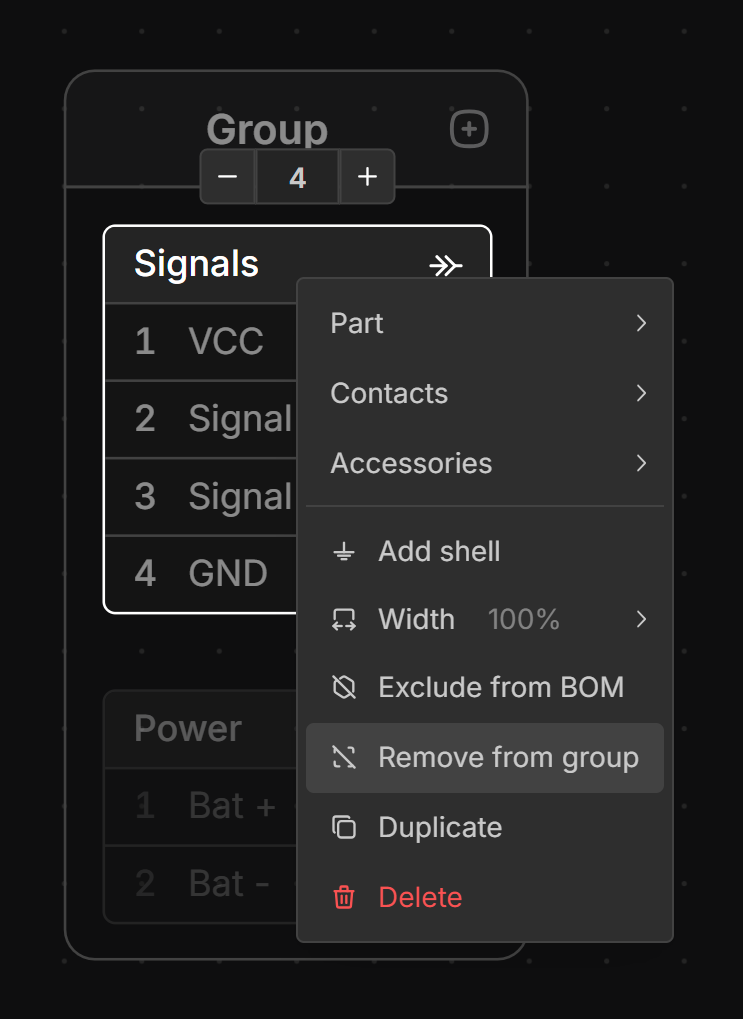
Right click on the component you want to remove and select Remove from group.
Resizing a Group
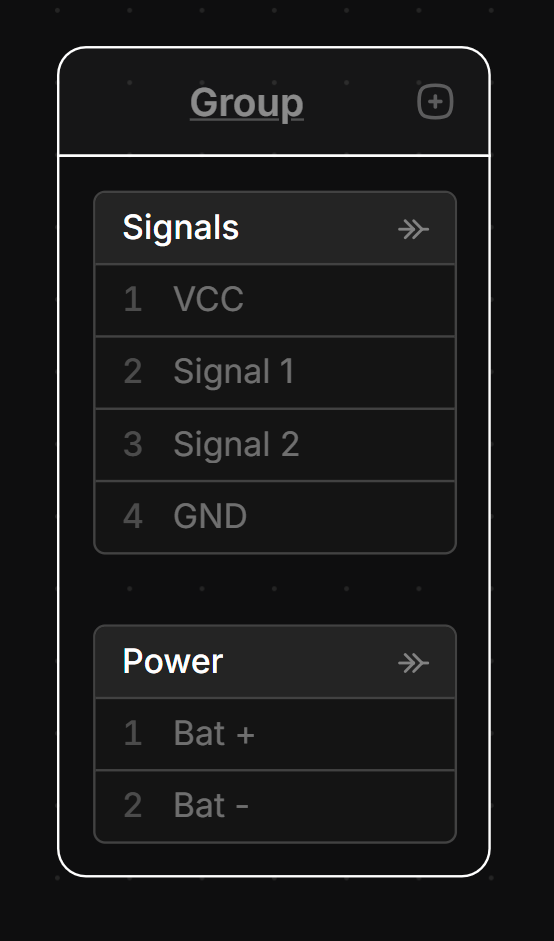
A group’s size adjusts automatically to fit the contents. To adjust it move any of the components in the group.
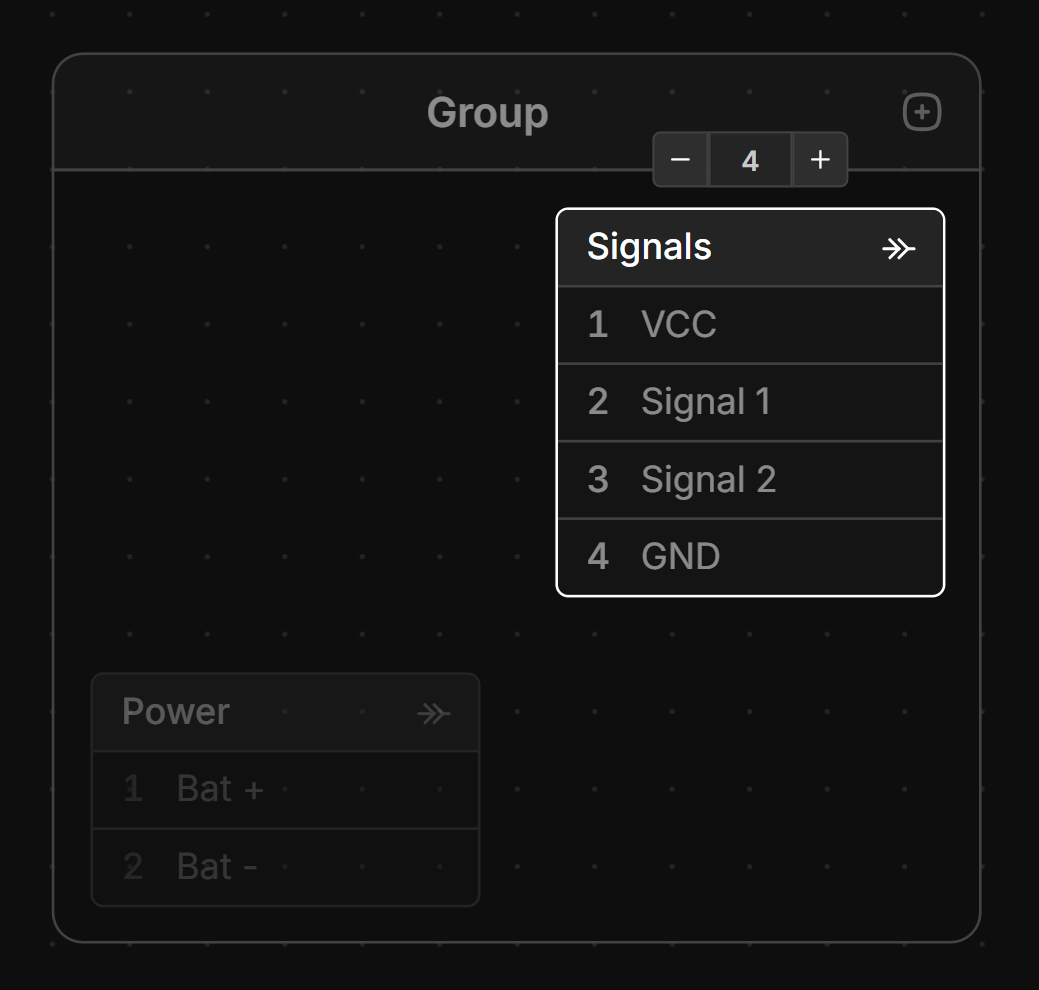
Moving a Group
The move a group click and drag the group heading.
Connections View and Groups
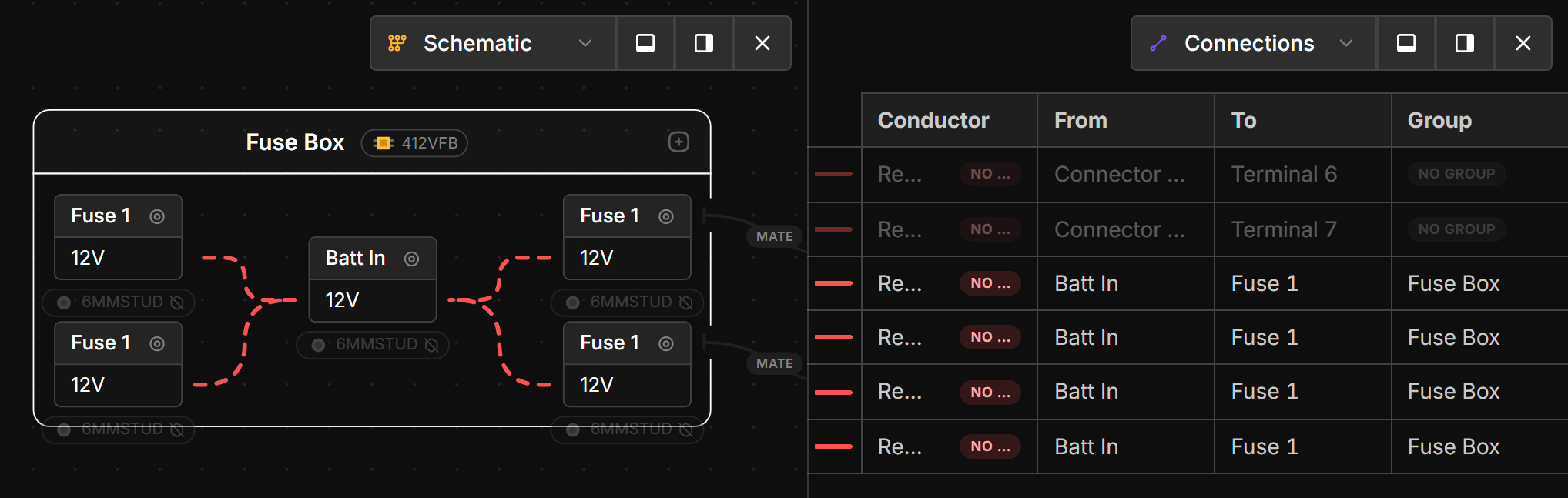
If there are wires between two components in the same group, the wire will be considered part of the group. This information will be displayed on the Connections View and the Wiring Table export
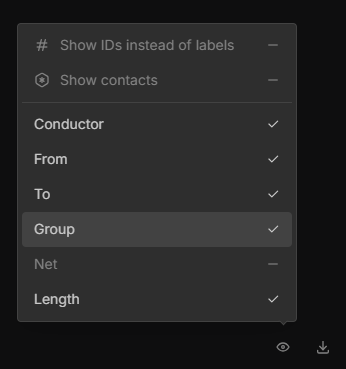
To display this information make sure Group is turned on in the View Options on the Connections View.
If a Splice, Wire or Net Label is inside the frame of the group it will will be considred part of the group.