September 22, 2026
Connectors can now show their pinout, a drawing of the mating face with every cavity in place, on the schematic and layout. The Parts Catalog gains Molex, and part libraries can be shared with your team or kept as local files on the desktop app.
Pinouts
A Pinout is the connector housing seen from its mating face: the outline, its keys, and one pin for every cavity in its real position. right-click a connector and select Show pinout to place it next to the connector on the schematic or layout, so you can see at a glance which cavity is which and check the harness against the connector in your hand.
Each pin is one of the connector’s cavities and carries its designation. Select a wire and its pin lights up in the wire’s colour; click a pin to select that cavity and highlight everything connected to it. Pinouts print in the PDF export in the same position and size as on the canvas.
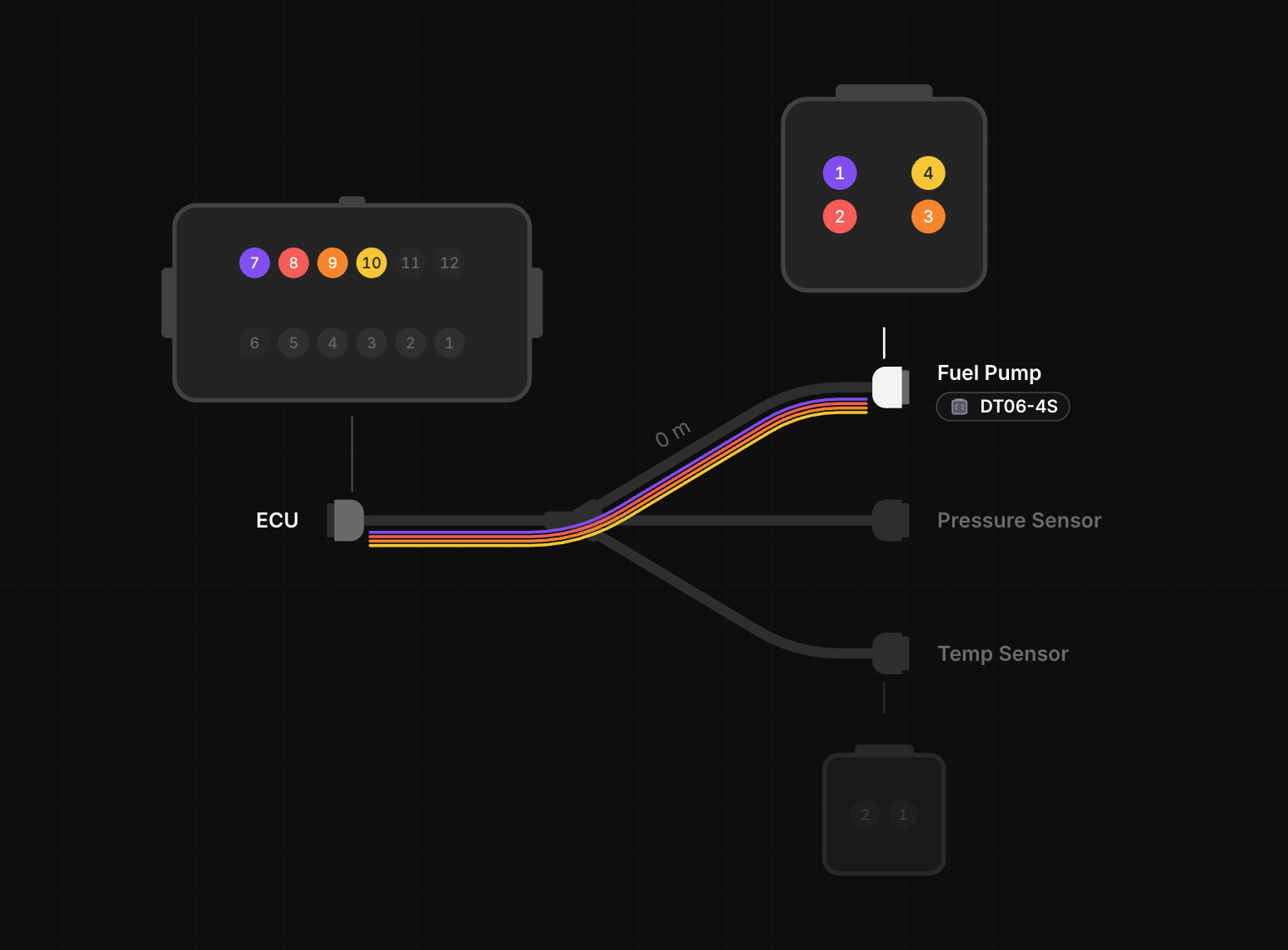
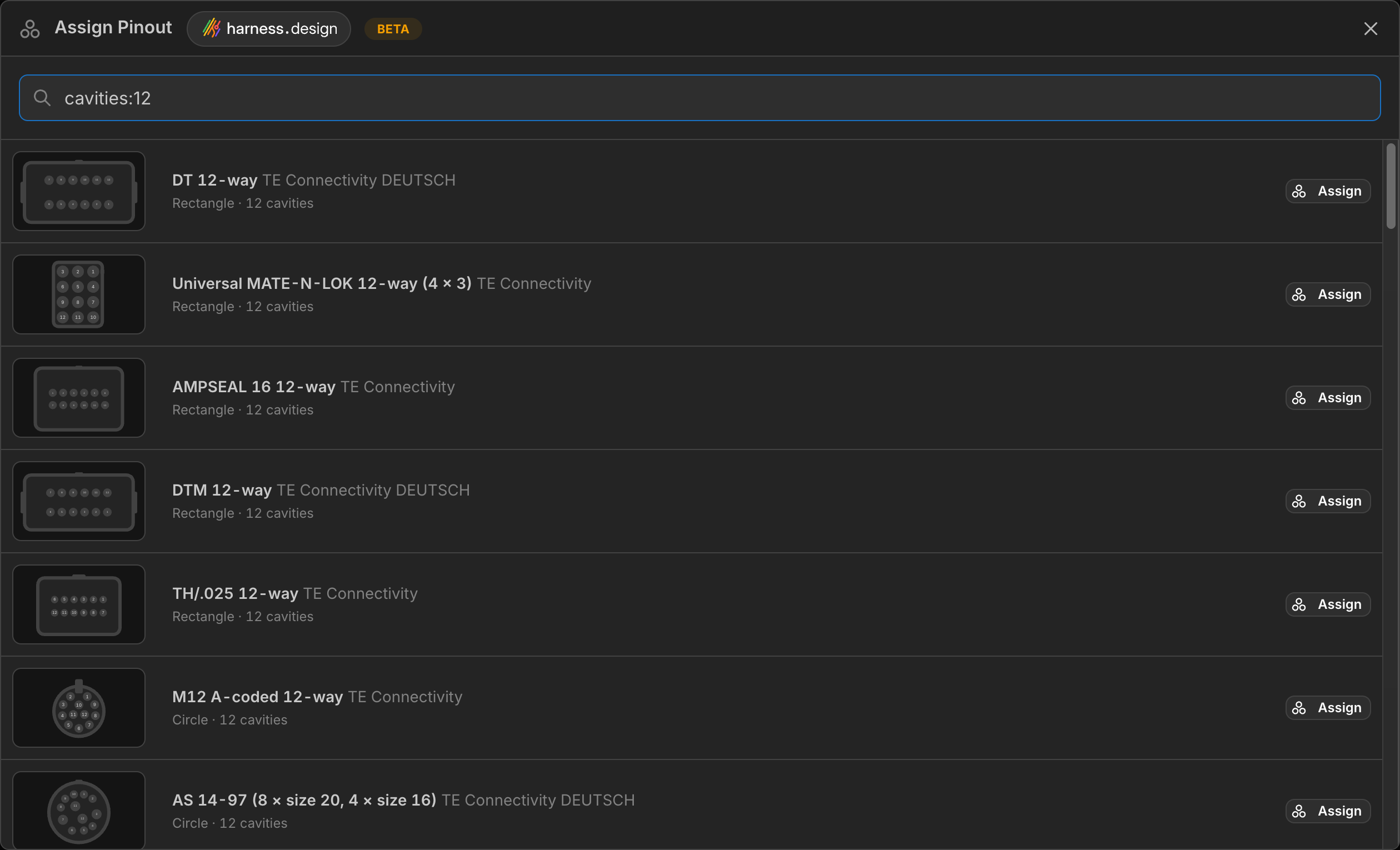
Pinouts come with the connector part. Nearly every connector in the Parts Catalog, more than 18,000 across TE Connectivity, Deutsch and Molex, brings its pinout with it, drawn from the manufacturer’s face drawings. A connector part you created yourself can borrow a pinout from the catalog: open the part’s details, click Assign pinout from catalog, and search by name, manufacturer or the part number of a connector that uses it, filtered to the part’s cavity count.
Molex in the Parts Catalog
The Parts Catalog now includes Molex: over 12,000 parts across 146 product families, built from Molex’s own product data and drawings. Housings, crimp contacts, locks, dust covers, backshells and mounts for systems such as Mini-Fit Jr., Micro-Fit 3.0, Nano-Fit, Mega-Fit, MX150, KK, CLIK-Mate, SL, Micro-Lock Plus, Squba and Mini50, plus Molex ring and spade terminals, quick disconnects, splices and heat shrink.
Every part carries its properties, cavity designations, image and, for connectors, its pinout, and mating housings and contacts are linked, so compatible: finds what fits. Search manufacturer:Molex to browse the whole set.
Assigning parts from the catalog is easier too:
- Cavity parts. The cavity part picker pre-filters the catalog to contacts and cavity plugs that fit the connector’s housing, with a Use in Cavity button on each result.
- Mated connectors. When a connector is mated to one that already carries a catalog part, the picker narrows the catalog to housings that fit the other side of the mate.
- A bare
shellfilter finds connectors with a shell, and searches match internal part numbers as well.
Part Libraries
You can now keep as many part libraries as you like, and every harness you open can use all of them. Each library is numbered, and the sync buttons in the Parts view and the entries in the part dropdowns carry the number so you can tell which library a part comes from.
- Share a library with your team. Move a library into your team from its settings, or from its options menu in the Open dialog, and every seated member can use and edit it. You keep ownership, and can take it back at any time.
- Local library files on the desktop app. A library can be a
.harnesslibfile on your computer instead of a cloud document. It is the same format as a.harnessfile, holding only parts, so it works fully offline and can be kept in version control alongside your harnesses. Create or link one from Main Menu → Preferences → Part Libraries, and edits made to the file outside the app are picked up straight away. - Libraries open in the editor. A library is a document of its own, listed under Part Libraries in the Open dialog next to your harnesses. Open it to edit its parts in a Parts view with undo, redo and the Parts Catalog, and every open harness picks up the changes.
Questions or feedback? Reach out on Discord or email support@harness.design.