Schematic
The Schematic view is a visual representation of all the electrical connections in your harness. In this view you can add Connector, Terminal, Splice, Diode, and Resistor Components and connect them together with Wires, Twisted Wires or Cables. You can then assign specific Parts to each component.
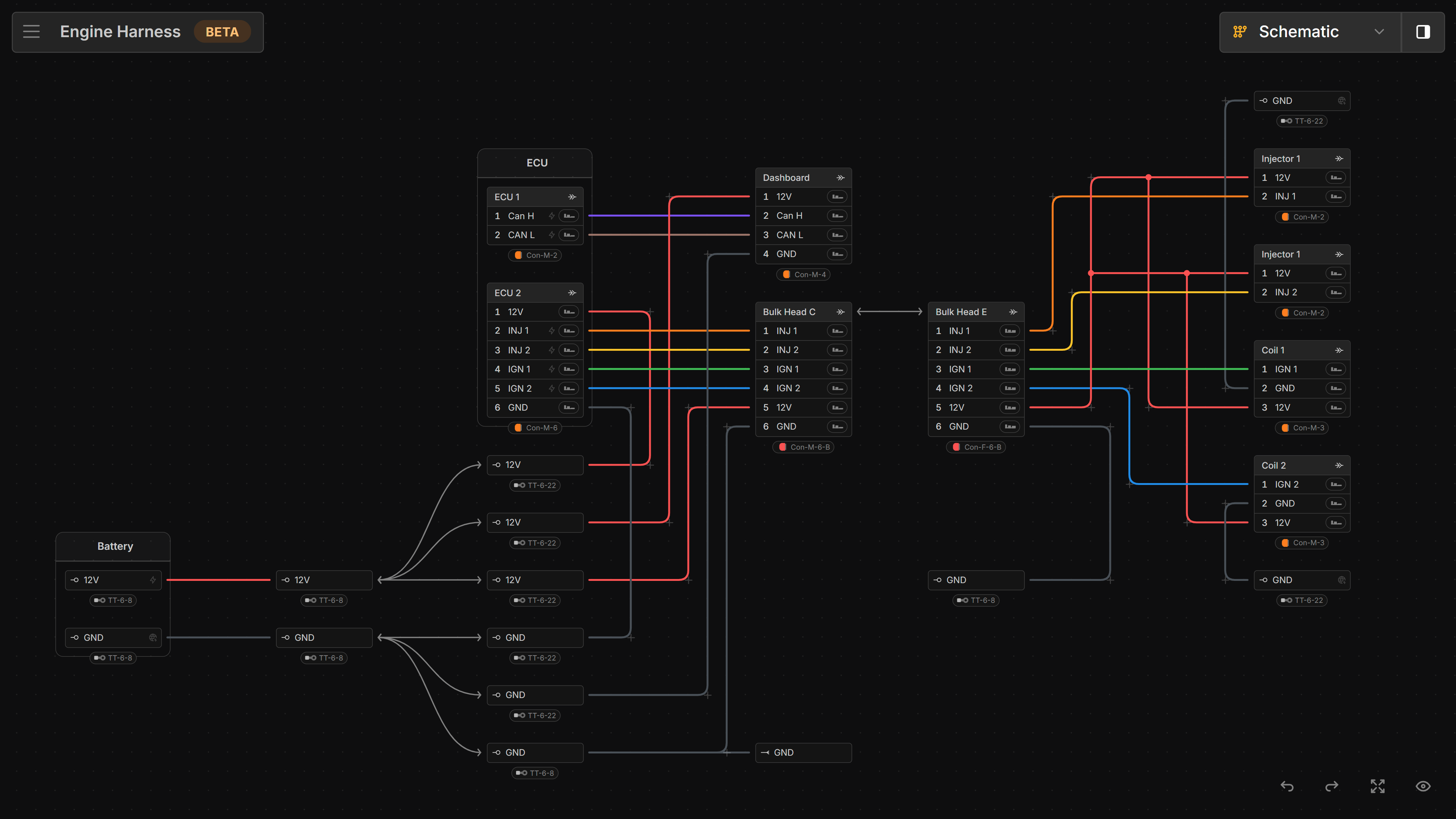
Canvas
This is where Components are placed and connected together with Wires.
right-click anywhere on the canvas to open the context menu and add Components.
right-click any component to assign a Part.
Buttons
Fit to view - Fits the entire schematic within the viewable area
Fit to view - If an item is selected, it will center and zoom in on the selected item
Highlight nets - Toggles between showing the complete path of conductance and showing what is directly connected to the selected component. More info
Dash undefined routes - Toggles dashed lines for wires that have not been routed through a Bundle in the Layout view. More info
Show parts - Toggles visibility of assigned parts
Show coverings- Toggles visibility of covering partsShow destinations - Toggles the visibility of destinations. More info
Show component IDs - Toggles the visibility of ID’s on components
Show warnings - Toggles the visibility of errors on the harness