Layout Point
Layout Points are used to define custom layouts for Wires, and Cables in the Schematic View, and for Bundles in the Layout View.
Adding a Layout Point
Double-click a Wire, Cable, or Bundle to add a Layout Point. You can also right-click the item and select Add layout point from the context menu.
More than one Layout Points can be added to a wire for more complex routing.
Moving Layout Points
To move a Layout Point, left-click and drag it to the desired position.
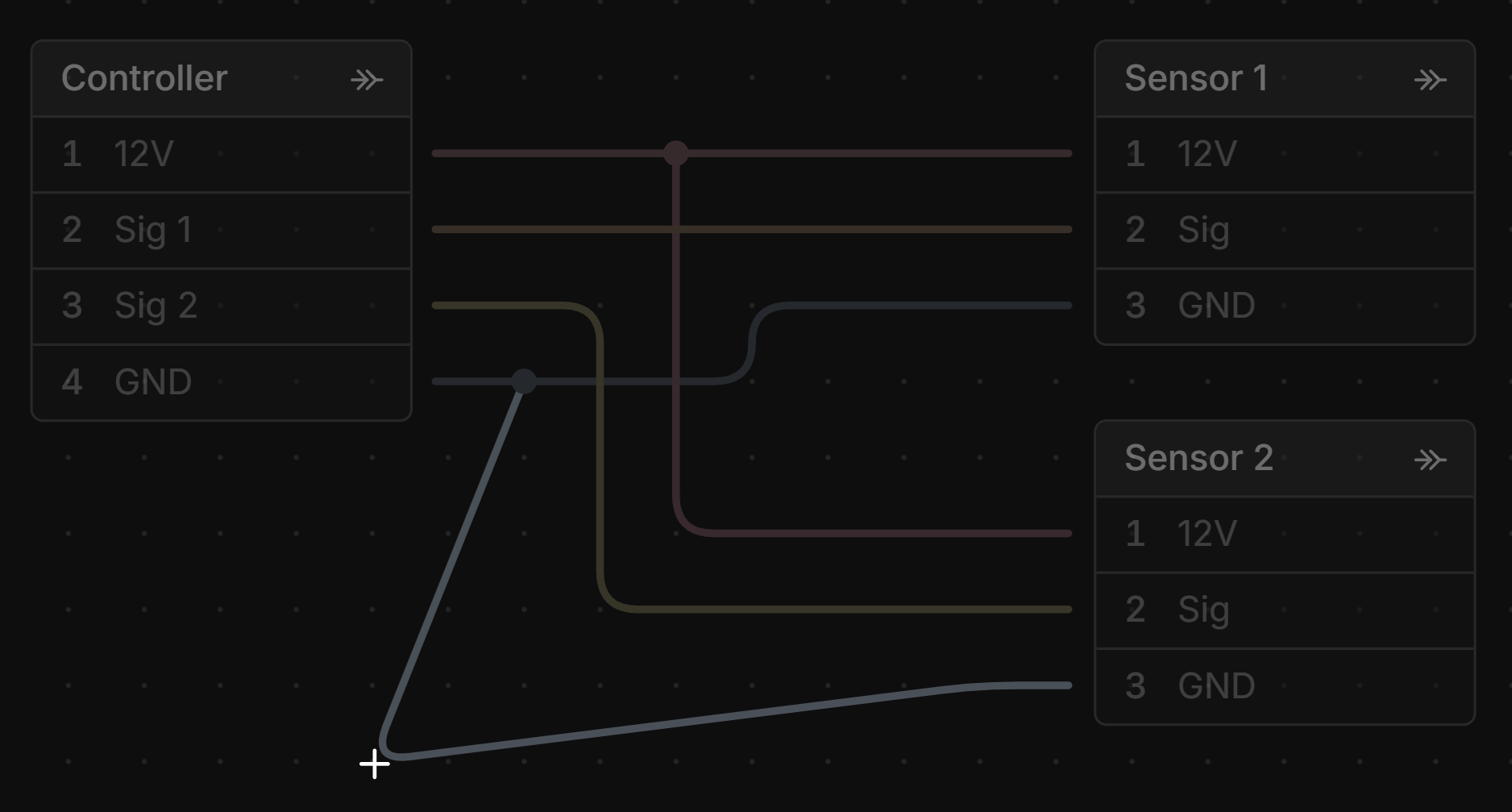
You can shift + left-click to select, or marquee select, to move multiple Layout Points at
once.
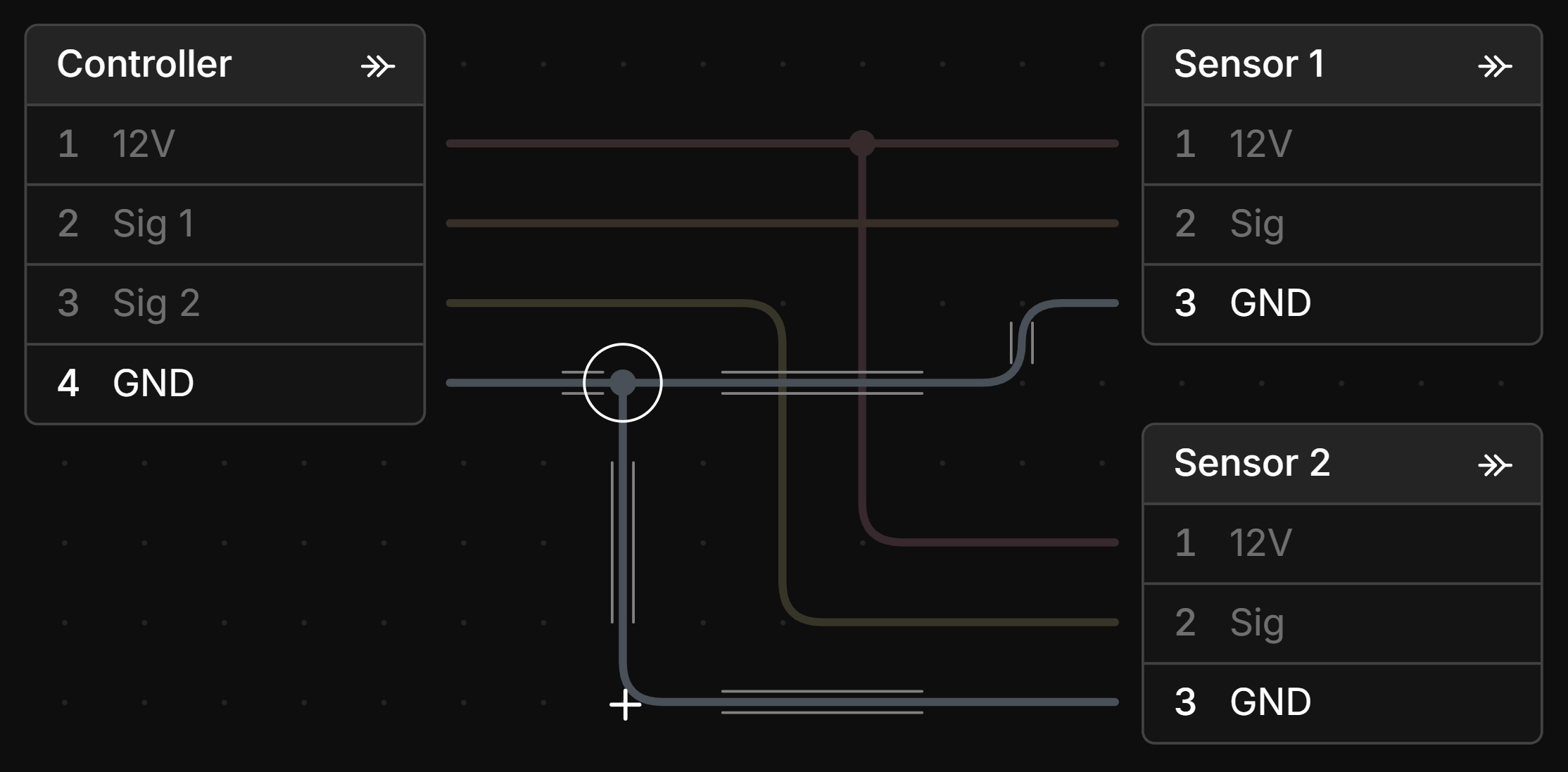
When moving a Layout Point, parallel guide lines will appear on the
sides of the item being adjusted when it is aligned horizontally, vertically, or at 45°.
Left-click and drag on a Wire or Cable will move the two layout points on either side of the dragged position.
Joining a Layout Point to a Splice or Branch Point
Drag a Wire’s layout point onto a Splice in the Schematic view to split the wire there and connect both halves to the splice. In the Layout view, dragging a Bundle’s layout point onto a Branch Point splits the bundle and joins both halves to the branch point.
This is the quickest way to tee an existing wire or bundle into a splice or branch point that is already placed: add a layout point where the join should be, then drop it on the target.
Deleting a Layout Point
Double-clickthe Layout Point- Select it and hit the
Deletekey Right-clickand select Delete
Deleting all Layout Points on a Wire, Cable or Bundle
Right-click a Wire, Cable, or Bundle and select Delete all layout points from the context menu.
Orthogonal Layout
Right-click a Wire and select Make orthogonal from the context menu or press the O key. This will layout these items orthogonally (only horizontal and vertical) using Layout Points.