RevisionsPro Feature
Revisions are named snapshots that mark milestones in your harness’s history. Create one each time you finish a meaningful piece of work — a completed subsystem, a design review, a released version — to capture that point and label what it represents. You can always come back to a revision later to review it, or roll your working version back to it.
Open them from Main Menu → Revisions.
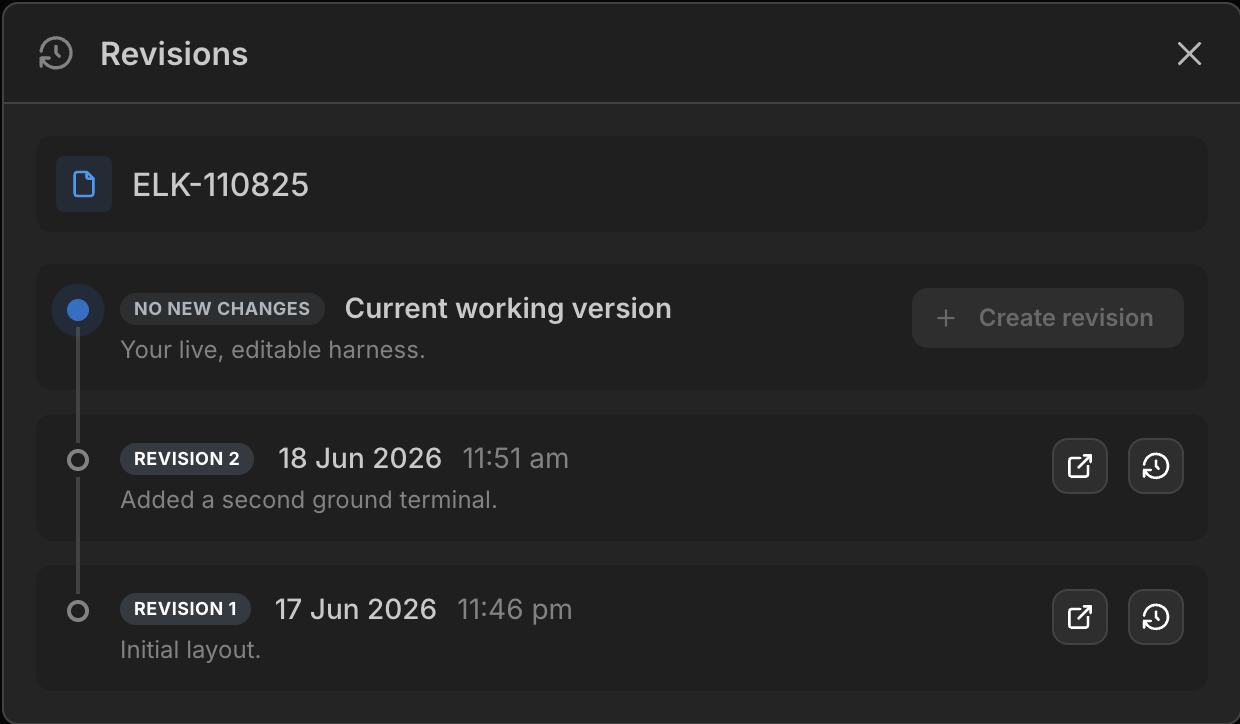
Revisions are available to anyone who can edit the harness. Viewers with read-only access don’t see the Revisions menu. Creating a revision additionally requires a Pro plan — on the Free plan you can still view and restore existing revisions.
Current working version
The top of the list is always your live, editable harness. A badge tells you whether it has changes that aren’t captured in your most recent revision:
- New changes — you’ve edited the harness since the last revision was created.
- No new changes — your work matches the latest revision.
Creating a revision
When you’ve finished a piece of work, click Create revision on the current working version, add an optional message describing what you’ve completed, and confirm. The snapshot captures the harness exactly as it is at that moment.
Viewing a revision
Click View revision to open it in a new browser tab. The revision opens read-only — you can pan, inspect parts and export it, but not edit it — so opening one never affects your working version.
Restoring a revision
Click Restore revision to roll your working version back to that snapshot. You’ll be asked to confirm, because your current work is overwritten.
Restoring replaces your current working version. To keep your current work, create a revision before restoring.
Each revision shows the date and time it was created and the name of the team member who created it.