Embed
Embedding places one harness document inside another as a linked Group. The group carries a full copy of the source harness, remembers where it came from, and can be refreshed when the source changes.
Use it to split a large design into sub-harnesses that are designed in their own documents, or to reuse one design (a pigtail, a standard sensor drop) across several harnesses.
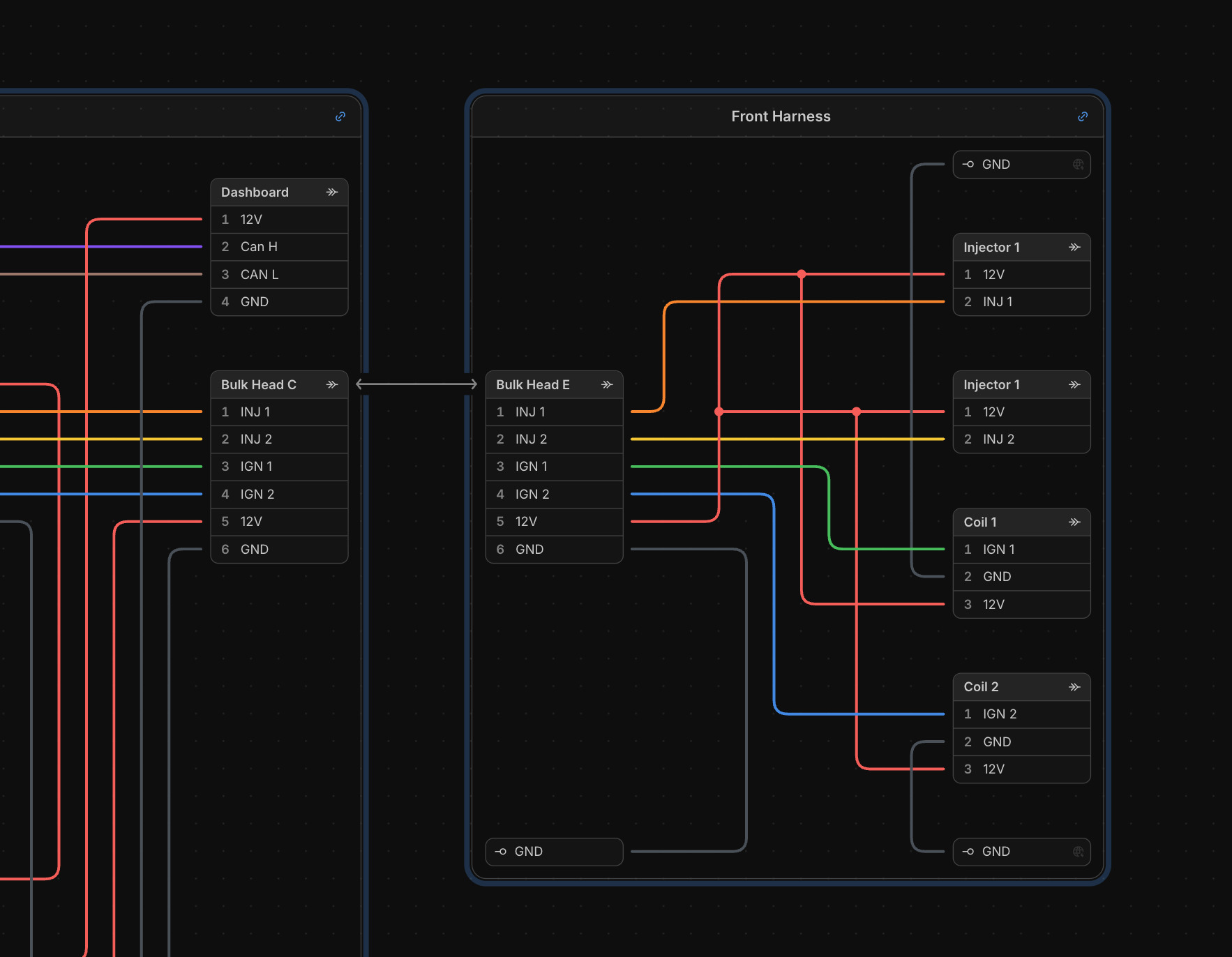
Embedding a harness
right-click an empty spot on the Schematic or Layout canvas and choose Embed Harness…, then pick the harness. The picker lists your harnesses and your team’s; in a local .harness file on the desktop app it lists local files instead. The embedded content lands where you clicked.
You can embed any harness you can open, including harnesses shared with you. Embedding is available on every plan; the embedded content counts toward the Free plan’s connection limit like anything else.
What a linked group is
A linked group is marked with a blue ring around its frame and a icon in its header. It behaves like a locked group, plus a link back to its source:
- Contents are read-only. The copy stays pristine so it can always be refreshed. To edit the contents in place, unlink first.
- Designators are prefixed. Components inside number independently and carry the group’s name:
Rear.C1,Rear.W1. The prefix follows through the canvas, the Connections view, the wiring table and the PDF. - Its parts stay separate. The linked copy brings the source’s part library with it, kept isolated from this document’s library. Linked parts render and validate normally, but they never appear in this document’s Parts view, BOM export or total price. The source document’s own BOM is where its parts are counted.
- You can connect to it. Wires, bundles and mates from the rest of the harness can land on the linked group’s connectors and terminals. Connections that would pull content out of the group, such as a wire to a splice inside it, are blocked and their handles are disabled.
In the Connections view and the wiring table, a linked group’s internal wiring is kept out of the main listing; the wiring table gives each linked group its own worksheet.
Staying in sync
The source is checked when the document opens. When it has changed since the copy was taken, a icon appears in the group’s header.
right-click the linked group to see its source card: the source harness’s name, a preview, and when it was last updated. Clicking the card opens the source.
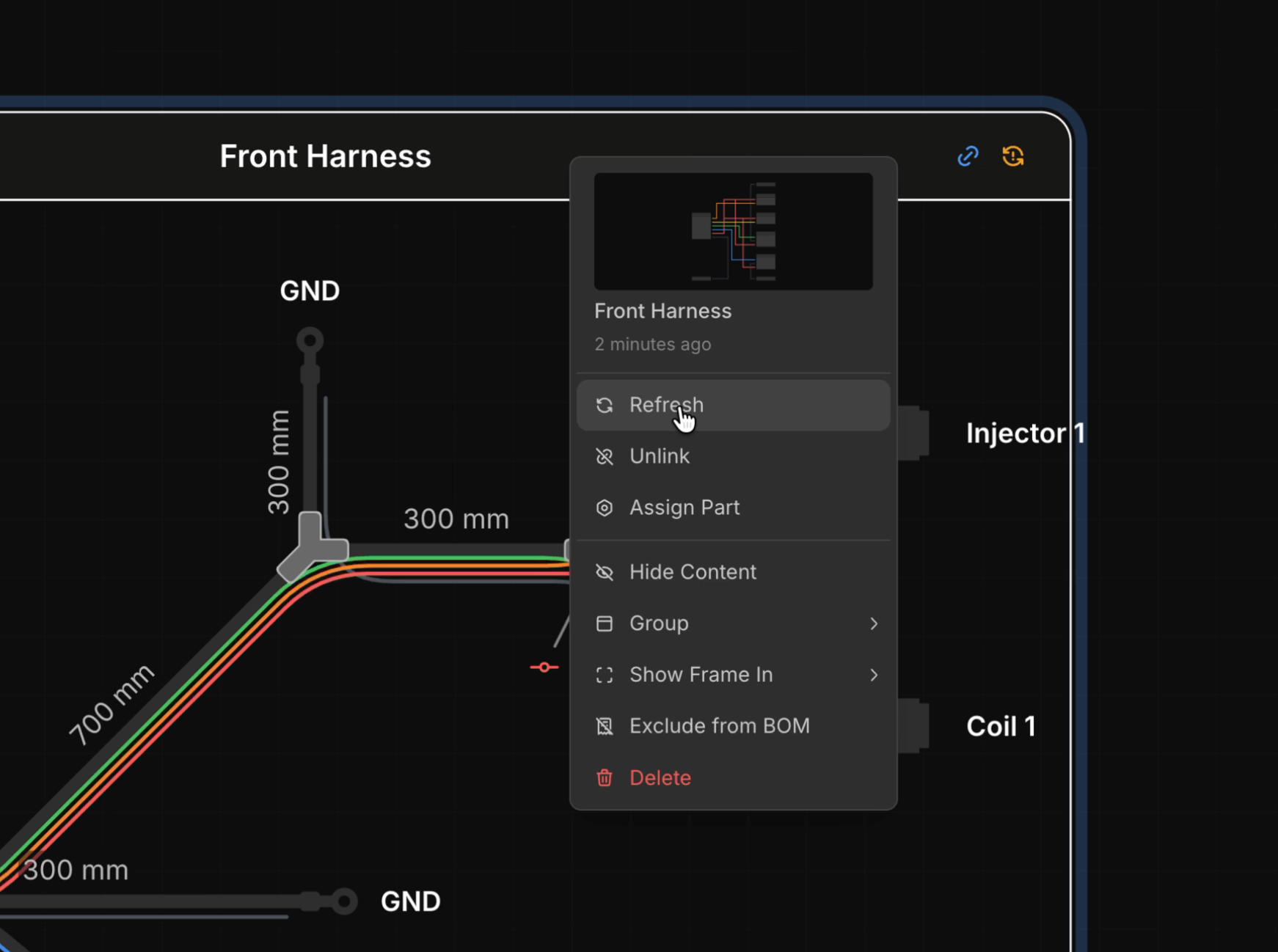
Choose Refresh (or click the icon) to replace the group’s contents with the source’s latest saved state. Refresh is a single undoable step, and the notification reports what changed: components added and removed, and any connections to the group that were removed because their endpoint no longer exists in the source. Connections to components the source still has are kept.
If the source becomes unreachable (the document was deleted, access was removed, or the file is missing), the header shows a icon. The embedded copy keeps working exactly as it is; only refreshing is unavailable.
Unlinking
right-click the linked group and choose Unlink to make it a regular group. The contents become editable and the linked parts join this document’s library. Parts are matched by part number and type; if a matched part differs between the two libraries, you make one choice that settles all conflicts: keep this harness’s versions, or take the linked ones.
A harness is also unlinked automatically when it crosses between worlds: uploading a local file to the cloud, or exporting a cloud harness to a local file, severs its links and merges the parts without prompting.
Linking an existing group
An ordinary group can be linked to a harness after the fact. right-click it and choose:
- Link to Harness… picks an existing harness. The group’s contents are replaced with the picked harness (undo to revert). Use this to re-attach a link after a source file moved, or to point a hand-built group at the document it mirrors.
-
Save as Linked Harness creates a new harness from the group’s contents and links the group
to it, without opening it. In the cloud the new harness lands in the same project as the current
one; in a local file it is written as a
.harnessfile next to the current document’s file.
Save as Linked Harness is the natural way to split a design: build everything in one document, group a section, and save the group out as its own linked sub-harness.
Local files on the desktop app
In the desktop app , a local .harness document embeds local .harness files. The link stores the source’s path relative to the document’s file, so a folder holding a main harness and its sub-harnesses can be moved, copied or checked into version control as a whole and every link keeps working. The file’s modification time is the freshness signal for the icon.
Cloud documents always link to cloud harnesses, and local files to local files; a document is never left with links it could not resolve.
Requirements and limits
- Formboard must match. A formboard harness can only embed a formboard harness with the same scale, and a regular harness a regular one. Changing formboard scale is blocked while linked groups exist.
- Currency is not converted. If the source uses a different currency, its prices are kept 1:1 in this document’s currency; a note in the notification reminds you.
- Cycles are warned about. Embedding a harness that itself embeds a copy of this one works, but refreshing will keep pulling stale copies around the loop, so the app warns you.
- Nested links are inert. A link inside an embedded harness is carried along as content and only becomes live once its container is unlinked.