Desktop App
The desktop app is the full harness.design editor as a native application for macOS and Windows. Everything works the way it does in the browser — plus offline use, local .harness files and .harnesslib part libraries, and automatic updates.
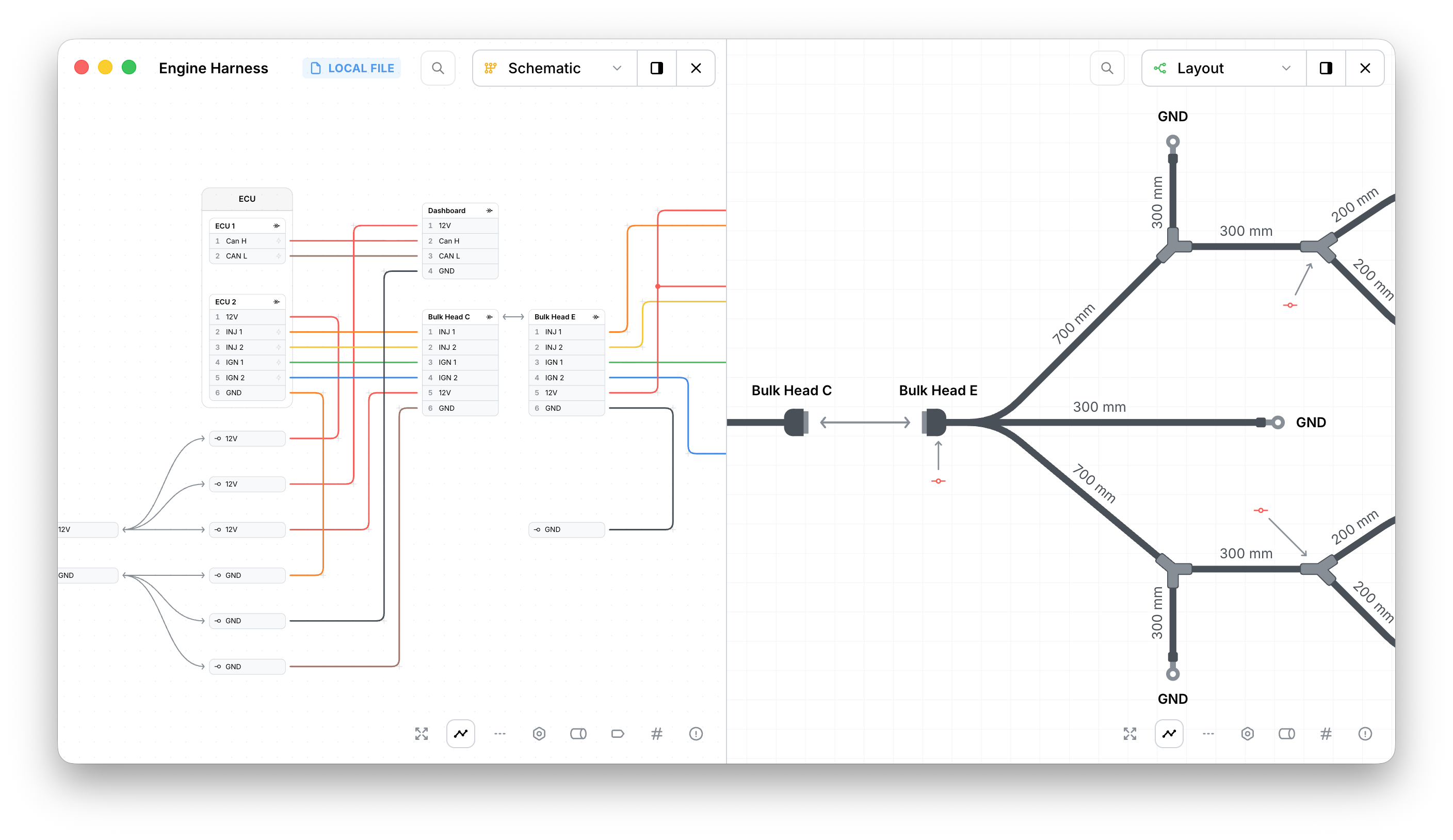
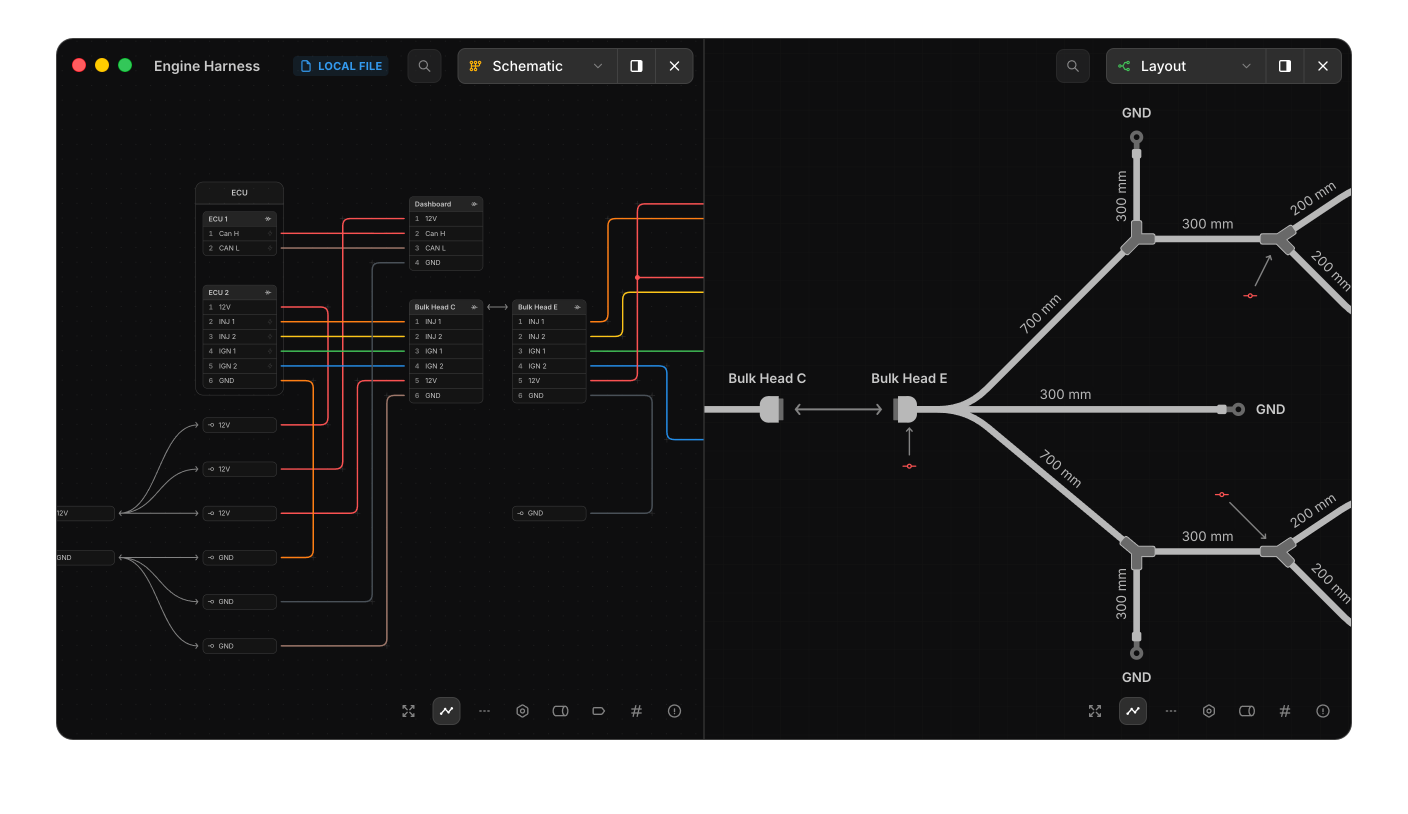
Downloading and installing
Download the app from app.harness.design/download . The page detects your platform; builds are available for macOS (Apple Silicon and Intel) and Windows.
A harness.design account is required — the app asks you to sign in on first launch, in your browser, with the same account you use on the web.
Working offline
Once you’ve signed in, the app keeps working without a connection:
- Local files open, edit and save entirely offline.
- Local part libraries are offered to every harness offline; cloud libraries need a connection.
- PDF export renders locally, so exports work offline too.
- Your plan is remembered for up to 30 days offline; reconnecting refreshes it automatically.
Cloud harnesses still need a connection to load and sync, and open exactly as they do on the web — sharing, teams, revisions and live collaboration all work the same.
Local .harness files
The desktop app can save harnesses as files on your machine instead of in the cloud:
- File → New Local File… creates one; Open… and Open Recent bring
them back. Double-clicking a
.harnessfile in your file manager opens it too. - Changes are saved to the file immediately — there is no separate save step. Renaming the harness renames the file.
- Local files are available on every plan. The free plan keeps its usual 100-connection limit.
A harness can cross between cloud and local at any time: Export → Local File saves a cloud harness to disk, and Upload to cloud… turns a local file into a cloud harness.
Version control
A .harness file is plain, pretty-printed JSON with stable formatting, so it works naturally with git or any other version-control system: commit your harness alongside your project, review changes as diffs, branch, and collaborate the same way you do with code.
Local library files
A part library can be a .harnesslib file on your machine too: the same format as a .harness file, holding only parts. Every local library you register is offered to each harness you open, next to your cloud libraries, and works offline.
- File → New Local Library… creates one, as does New local library… on the Open dialog’s Local Files tab. Double-clicking a
.harnesslibfile opens it in the library editor. - Main Menu → Preferences → Part Libraries lists the libraries offered to your harnesses: create a new file, Link existing… to add a file you already have, or remove one from the list (the file is kept). See Preferences.
- Keep the file in version control next to your
.harnessfiles and link it on each teammate’s computer to share a library without a team subscription. Changes pulled from version control are picked up while the app is open.
Like harnesses, libraries cross between cloud and local freely: Export → Local File saves a cloud library as a .harnesslib file, and Upload to cloud… turns a local library into a cloud one.
See Local library files for how local libraries appear in the editor.
Editing files with AI agents
Because local files are plain text, AI coding agents such as Claude Code can work on them directly — open the folder containing your .harness file and ask the agent to inspect or change the harness, the same way you’d ask it to work on code. The same goes for a .harnesslib part library.
Every .harness file starts with two pointer keys that tell agents (and editors) everything they need:
$schema— the JSON Schema for the file format. Editors like VS Code use it to validate the file as you type.$docs— the editing guide, written for agents editing the JSON directly: the format, the conventions, and the rules that keep a harness consistent.
While the file is open in the desktop app, the app watches it and reloads saved changes immediately — the canvas is your live preview of what the agent is doing. If you and an agent edit at the same time, the version saved to disk wins, so it’s best to pause while an agent is mid-edit.
Working on cloud harnesses with an AI assistant works differently — through an MCP connection to your account. See AI Assistants.
Staying up to date
The app checks for updates automatically and downloads them in the background; when one is ready it offers to restart and install. You can also check manually from the application menu (Check for Updates…).