October 13, 2026
The Layout view now draws your harness much closer to how it’s built: connectors can be drawn as their real top or side drawings, and bundles at their estimated thickness with their coverings and wires showing. Select a bundle to see its cross section. The PDF export gains connection tables, you can place images on the canvas, and connector configurations can now hold every accessory a connector needs, each placed by its own rules.
Connector Drawings
On the Layout view, connectors can be drawn as to-scale top or side drawings of the real housing, in the part’s colour, instead of the connector symbol. Bundles attach at the back of the drawing, internal wires start there too, and mated connectors meet face to face. Choose Symbol, Top drawing or Side drawing under Main Menu → Harness settings → Layout; the PDF export and formboard panels follow the same setting.
Drawings come with Parts Catalog connectors, and the new drawings filter finds the ones that have them. A connector part you created yourself can borrow drawings from the catalog: open its part details and click Assign drawings from catalog. Connector drawings are in beta.
Bundles Drawn at Their Thickness
Bundles on the Layout view can be drawn at their estimated thickness and show their outermost covering: corrugated tubing ribs, spiral wrap with the wires showing through, tape wraps or a woven braided sleeve. Uncovered bundles show their wires side by side in their colours. Connectors, terminals and branch points can take their part colours, and branch points are now one shape that fits bundles of different widths.
These are set per harness under Main Menu → Harness settings → Layout, and are saved with the harness, so anyone viewing it, embeds and the layout PDF all see the same drawing. Bundles and branch points can also be given parts straight from the Parts Catalog, or a new covering part created from their part picker.
Cross Sections
Select a bundle on the Layout view to see a to-scale cross section of every wire and cable routed through it, with its estimated overall diameter. Click a wire in the cross section to select it, and click the background to go back to the bundle. Wire and cable parts show their own cross section in the part details.
Diameters are estimated from each part’s gauge. For exact figures, enter the datasheet values in the new Insulation, Jacket and Diameter fields on wire and cable parts, and Thickness on coverings.
Connection Tables in the PDF Export
The PDF export can now include Connections pages: one table of every connection in the harness, a table for each component of its own connections, or both. Component tables can show the part, its image, its accessories and its pinout above the table, and the contact loaded in each cavity. Choose the columns, and lay the tables out on a single page or across multiple pages.
The PDF Parts page and the BOM CSV can also include each part’s URL, as clickable links in the PDF.
Images on the Canvas
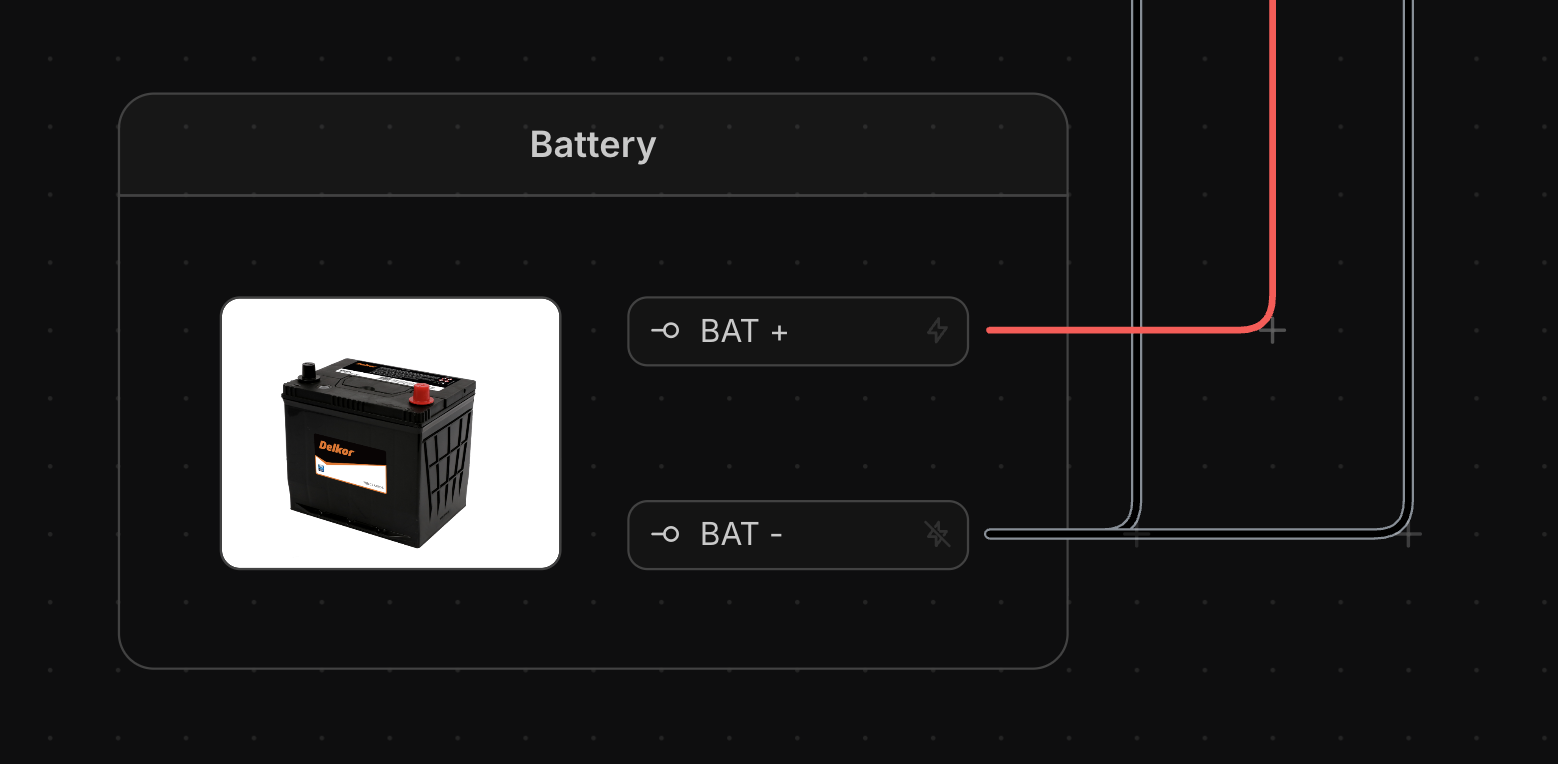
Place your own pictures, such as a photo of the device a harness connects to, a drawing or a logo, on the Schematic or Layout view. right-click the canvas and select Image…, or drop image files straight onto the canvas.
Connector Configurations
A connector configuration can now hold any number of accessories: locks, dust covers, backshells, boots, mounts, coverings, contacts, cavity plugs and cavity seals. Contacts, cavity plugs and cavity seals are loaded into the connector’s cavities automatically by their rules: connected or unconnected cavities, cavity size, wire gauge or wire diameter, and contact. A new contact’s rule follows the contact part’s own gauge range. Coverings on terminals, splices, diodes and resistors are also applied through their part configurations.
Redesigned Part Details
The part details window lays every property out in one table beside the part’s image, with the price next to the manufacturer and ranges entered as thinnest to thickest. Connectors show their image, pinout and drawings side by side.
Other Improvements
- Move connections by dragging. Hold
⌘(Mac) orCtrl(Windows) and drag from a cavity or terminal’s handle to move its connections to another one, without redrawing the wires. Read more… - A label at each end of a bundle. Bundles can have a different label and colour at each end. Bundle labels and wire idents are now drawn along the path, following its bends. Read more…
- Resizable table columns. Drag the column dividers in the Parts and Connections views to resize them, and reset them from the Columns menu. Part specs show as one line of text.
- Nudge with the arrow keys. Move the selection on the Schematic and Layout views with the arrow keys.
- Pinout side. Show pinouts from the Mating side or the Harness side, optionally labelled, under Main Menu → Preferences → Appearance. Pinouts and part images resize with a single Size control. Read more…
- Catalog search filters. A filter button in the Parts Catalog’s search field lists every search filter, so you can see and change the ones a picker has filled in for you. Read more…
- Location handles on inline components. Hover a splice, diode or resistor on the Layout view to drag its location from either side.
- Desktop app. The macOS Window menu lists your open harness windows, and part images in linked local files now show when the files are in different folders. Read more…
- Newer documents. Opening a document saved by a newer version of harness.design shows a message asking you to reload or update, instead of failing to load.
- Prices in USD. Prices on the upgrade page, checkout and invoices are labelled USD for anyone outside the US.
- Wiring table signals. Turn off the signal shown after each destination in wiring tables under Main Menu → Preferences → Appearance.
- Titles in tabs and link previews. Browser tabs show the harness name, and shared links preview with the harness’s name and drawing.
- Phones. The canvas on a phone hides the search and selection panel, keeping just Highlight nets and Show parts. Read more…
- Cavity parts. Selecting a cavity or pin highlights the contact or plug loaded in it along with its wire and connector parts, and on the formboard draws the wires connected to it.
- Nets stop at diodes and resistors. Nets and signals no longer pass through diodes and resistors. Read more…
- Twisted pairs. Create new part now works on wires in a twisted pair.
- Escape now closes only the topmost window.
Fixes
- PDF title block rows grow to fit wrapped field values instead of overflowing.
- Mate edges update when their connectors move inside a group on the layout.
- Grid designations allow up to 128 rows and columns.
- The Group submenu scrolls when it’s taller than the window.
- White wire pins are outlined in the pinout so they stand out.
- Splices placed by hand on the layout keep their position.
- Contact rules are no longer cleared when you switch Apply to in the rules.
- Password reset links are no longer used up by email security scanners before you click them.
Questions or feedback? Reach out on Discord or email support@harness.design.