Local Files
You can save a harness to your computer as a .harness file. The file contains everything that describes the harness: the schematic, the layout, the parts and the harness settings.
A .harness file is plain, pretty-printed JSON, so it is easy to keep in version control, inspect, or edit directly. It is also the format the Desktop App uses for local files, so a file saved from the web app opens in the desktop app, and vice versa.
A part library saves the same way, as a .harnesslib file: the same format holding only parts, marked "kind": "library".
Saving a local file
From Main Menu → Export → Local File.
In the web app this downloads <harness title>.harness. The saved file is a snapshot: later changes to the harness in the cloud are not written to it. Export again to save a newer copy.
If the harness contains embedded harnesses, the saved file contains a copy of their contents and the links are removed. The harness you have open keeps its links.
Opening a local file
From Main Menu → Open → Local File.
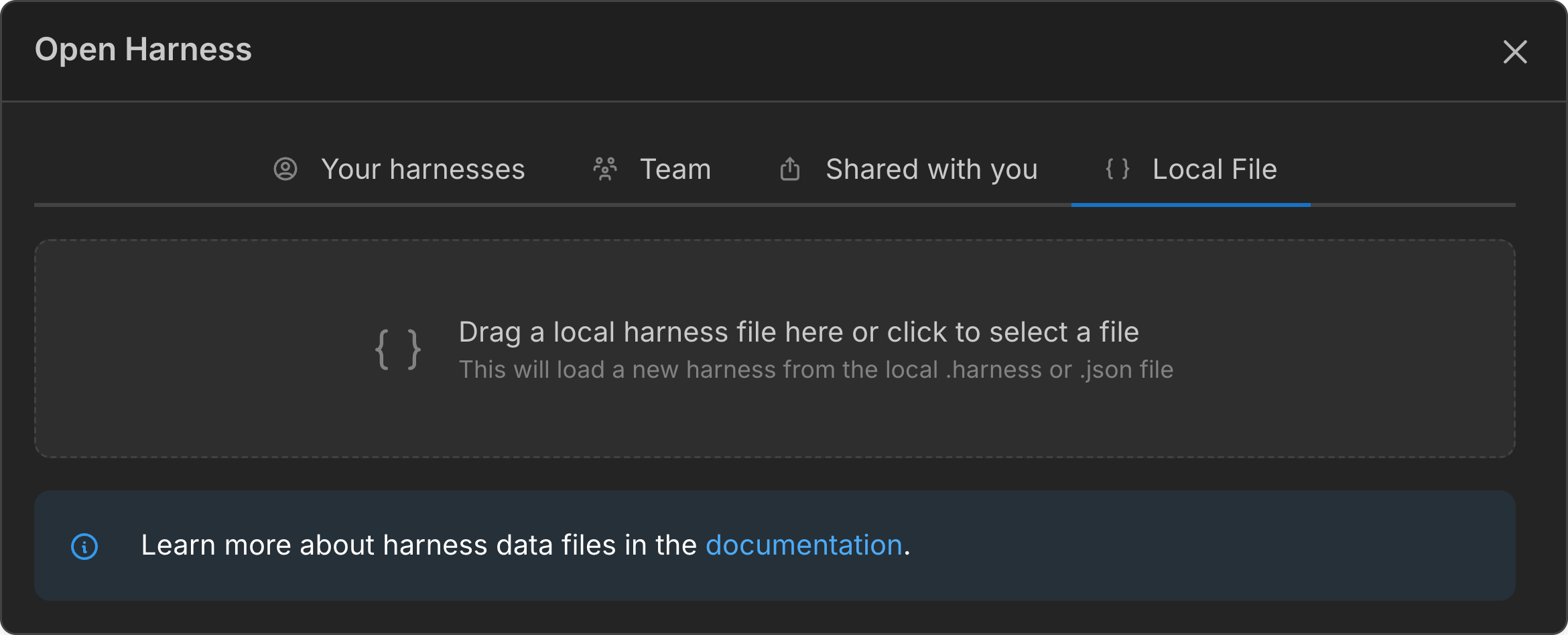
Drag a .harness file onto the box, or click it to choose a file. The web app creates a new harness in your account from the file, named after the file. The file itself is not changed, and the new harness is saved to the cloud like any other harness. A .harnesslib file creates a new part library the same way.
Files exported by earlier versions of the app, including the older .json Harness Data export, open the same way. Older format versions are upgraded automatically when they are opened.
Local files in the desktop app
In the Desktop App, local files are a full editing mode rather than an import or export. A local harness lives only in its .harness file on your computer, edits are written to the file as you make them, and it works fully offline.
- Open → Local Files lists your recent local files, with Open file…, New local file… and New local library… buttons. Double-clicking a
.harnessor.harnesslibfile also opens it in the desktop app. - Export → Local File from a cloud harness or library saves a
.harnessor.harnesslibcopy and offers to open it as a local file. - Upload to cloud… creates a cloud harness or library from a local file, for example to share it or add it to a team.
- Local
.harnessliblibraries are offered to every harness you open, cloud or local. They are managed under Preferences → Part Libraries. See Local library files.
See Desktop App for the details, including editing local files with AI agents.
File format
Every .harness file starts with two pointer keys, so editors and AI agents can find the format’s documentation from the file alone:
$schema— the JSON Schema for the file’s format version. Editors like VS Code use it to validate the file as you type.$docs— the editing guide, written for people and AI agents editing the JSON directly.
The JSON Format page is the full reference for the structure of the file. It is also available as a single markdown file to hand to an AI assistant: