Collaborating on Harnesses
A harness that belongs to a team can be opened and edited by every seated member — not just its original owner.
Moving a harness into your team
Moving a harness into your team doesn’t change who owns it. You keep ownership and full control — you can still rename, share, restore, or remove it from the team whenever you like. Moving it simply lets the team’s other seated members open and edit it alongside you.
There are two ways to move one of your personal harnesses into the team — you need to hold a seat for either:
- From the open harness — go to Main Menu → Harness settings → Team and choose Move to team.
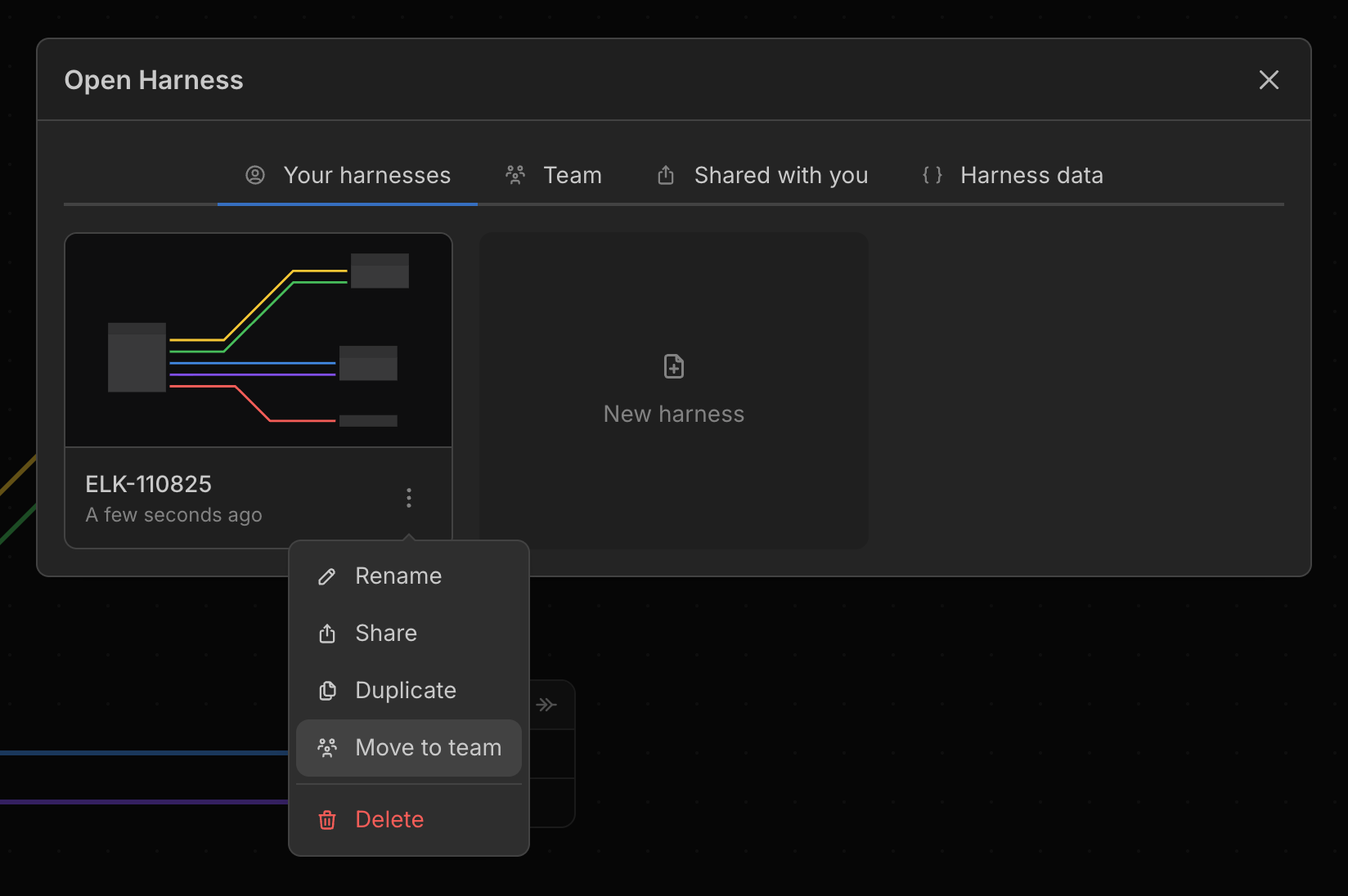
- From the Open dialog — go to Main Menu → Open, find the harness in the Documents tab (Cloud in the desktop app), open its options menu and choose Move to team.
You can also create a team harness from scratch: in Main Menu → Open, switch to the Team tab and use the New team harness button at the top of the panel.
Team harnesses appear in the Team tab of the Open dialog for everyone on the team, alongside the name of the member who owns each one.
Editing together
Everyone with a seat can have a team harness open at the same time — there’s no checking out or locking to work around. You always know what your teammates are up to:
- When someone else has the harness open, an indicator shows who’s also working on it.
- A syncing indicator appears whenever a teammate is making changes, and your view updates automatically when they save — no need to refresh.

Because of this, editing together stays smooth even when you’re both in the same harness at once — the indicators make it easy to see what’s happening and stay out of each other’s way.
If two people edit the same harness at the very same moment, the most recent save is the one that’s kept — so it’s worth a quick glance at the indicators before reworking something a teammate is actively editing.
To safeguard a finished piece of work from later changes — and to keep a record of how the harness evolved — create a revision. A revision is a named snapshot you can always restore, independent of anyone’s later edits, making it the best way to mark milestones on a shared harness.
Removing a harness from the team
From the same Team settings, choose Remove from team to return the harness to personal ownership. A document’s owner can always do this; the team owner can remove any of the team’s harnesses.
Sharing part libraries
Part libraries are shared the same way. A library that belongs to the team is offered to every harness the team’s members open, next to their own libraries: seated members can add parts to it and edit it, and members without a seat can use its parts read-only.
- Move one of your libraries into the team from its Library settings → Team tab, or from its options menu in the Part Libraries view of the Open dialog.
- Create a team library from scratch with New team library in the Team tab of the Open dialog.
Team libraries appear in the Part Libraries view of the Team tab for everyone on the team. Libraries can’t be shared by email invitation; a team is the way to share one.