Export
From Main Menu → Export you can output documents for manufacturing your harness, or save a local copy of your harness as a .harness file.
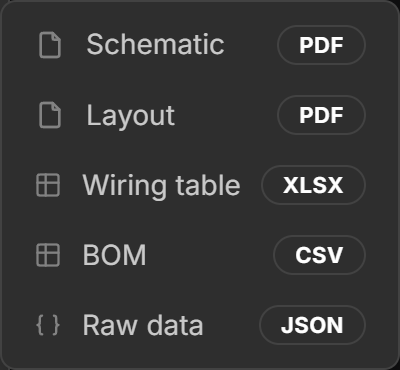
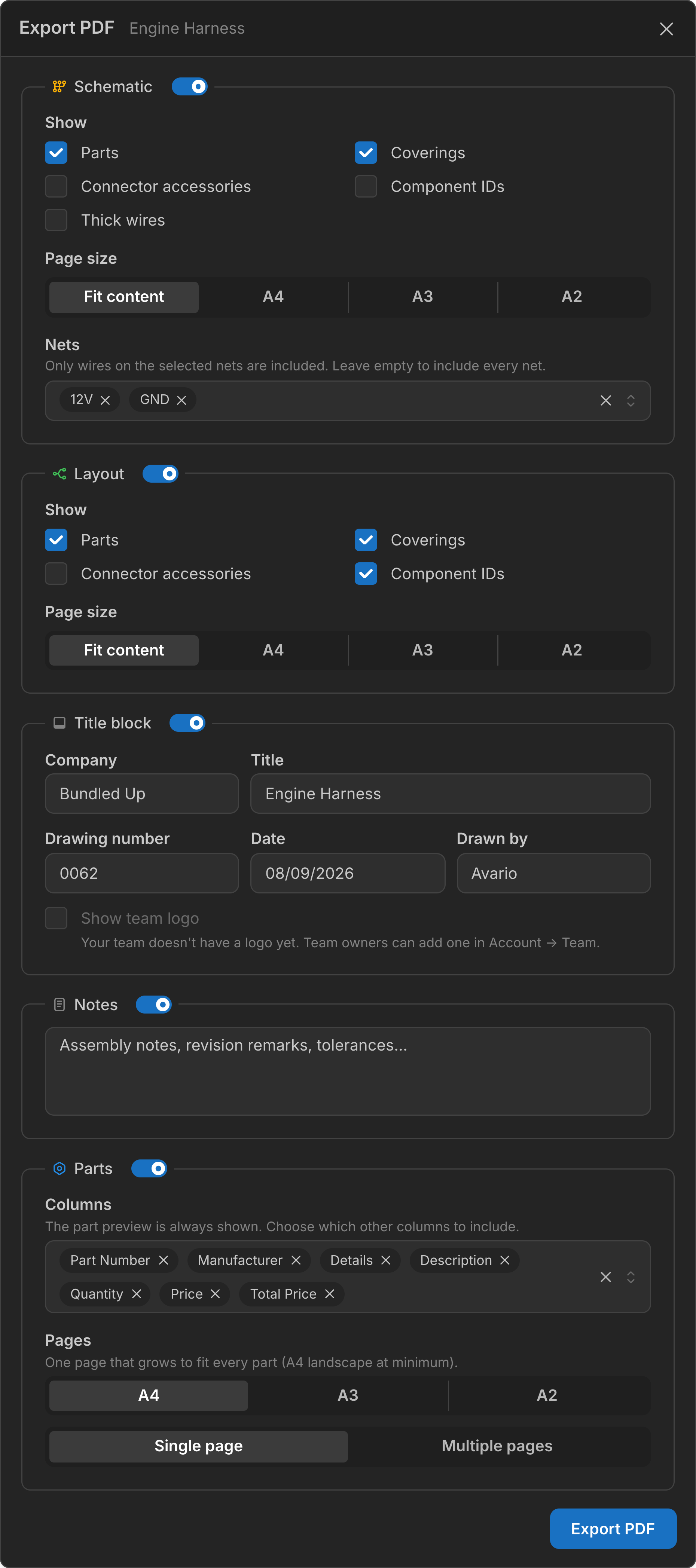
Opens the Export PDF panel, where you choose the content of the PDF before exporting. The export can contain a Schematic page, a Layout page and a Parts page, in any combination, each with its own options. A title block and notes can be added to every page.
Your setup is saved with the harness, so the next export starts from the same configuration.
Schematic
Includes a PDF page of the Schematic view, with these options:
- Show - Choose what is drawn on the page: Parts (the part pills assigned to components), Coverings (the covering pills), Connector accessories (the accessory pills on connectors), Component IDs (
C1,W3, … on nodes), and Thick wires (a heavier line weight for wires, cable cores and twisted wires). - Page size - Fit content sizes the page to the drawing. A4, A3 and A2 give a fixed landscape page; the drawing is scaled down to fit if needed, never enlarged, and centred on the page. The title, notes and title block keep their size either way.
- Nets - Limit the page to specific nets. Only wires on the selected nets are drawn, and components that are not on a selected net are left out entirely. Cavity labels inherited from a hidden net still render, in a lighter gray. The shown nets are listed in the corner of the page.
Layout
Includes a PDF page of the Layout view, with the same Show and Page size options as the Schematic page.
For a formboard harness, the Layout page renders the whole formboard onto a single 1:1 scale page.
If inline components are hidden in the Layout view, splices, diodes and resistors are left off the Layout page too.
Title block
Adds an engineering-drawing title block to the bottom-right corner of each page, with Company, Title, Drawing number, Date, and Drawn by fields. Only the fields you fill in are rendered.
Some fields fall back to a default when left empty:
- Title - The harness title.
- Date - Today’s date.
- Drawn by - The name on your profile.
Show team logo adds your team’s logo to the title block. Team owners can upload a logo from Account → Team.
The title block content is saved with the harness.
Notes
Adds free-text notes to the bottom-left corner of each page: assembly instructions, revision remarks, tolerances, or anything else the builder should read alongside the drawing.
The notes are saved with the harness.
Parts
Includes a bill of materials as a PDF page, sectioned by part type like the Parts view, with a total row at the bottom.
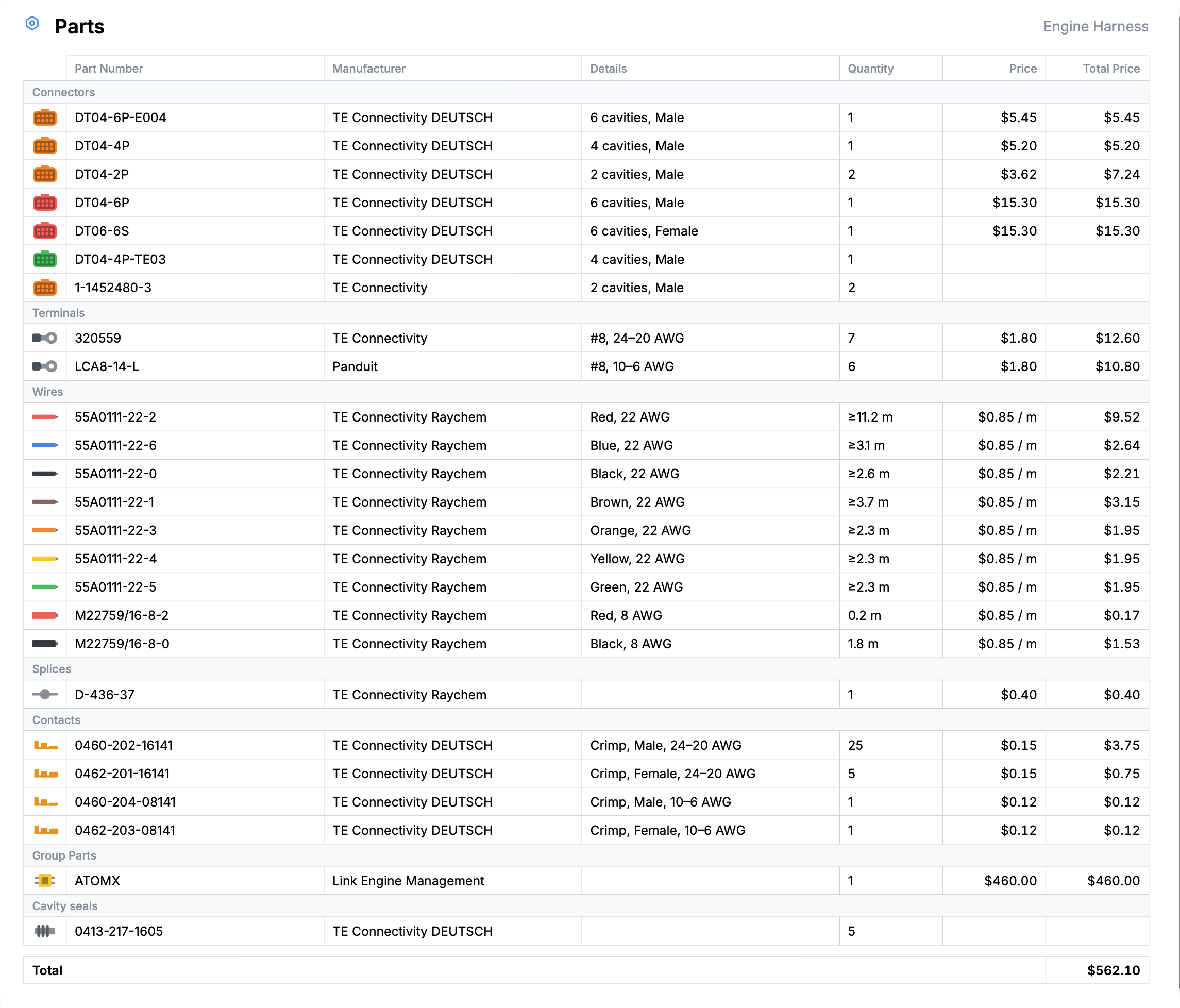
- Columns - Choose which columns to include: Part Number, Manufacturer, Details, Description, Quantity, Price and Total Price. The part preview column is always shown, and the selected columns share the page width.
- Pages - The page size, A4, A3 or A2 landscape, and whether the table is drawn as a Single page that grows to fit every part, or split across Multiple pages of that size.
Like the BOM, the Parts page lists the parts of this harness only. Parts inside an embedded harness are not included.
Formboard Panels
Available for a formboard harness. Exports a PDF with one page per panel of the formboard grid, each page sized to your panel size and drawn to scale.
Print the pages, lay them out in the same grid arrangement, and build the harness directly on top. For example, an A3 panel with a 2 × 4 grid prints as 8 to-scale A3 pages.
The number of pages equals the Rows × Columns set under the formboard’s Panel grid settings.
Wiring table
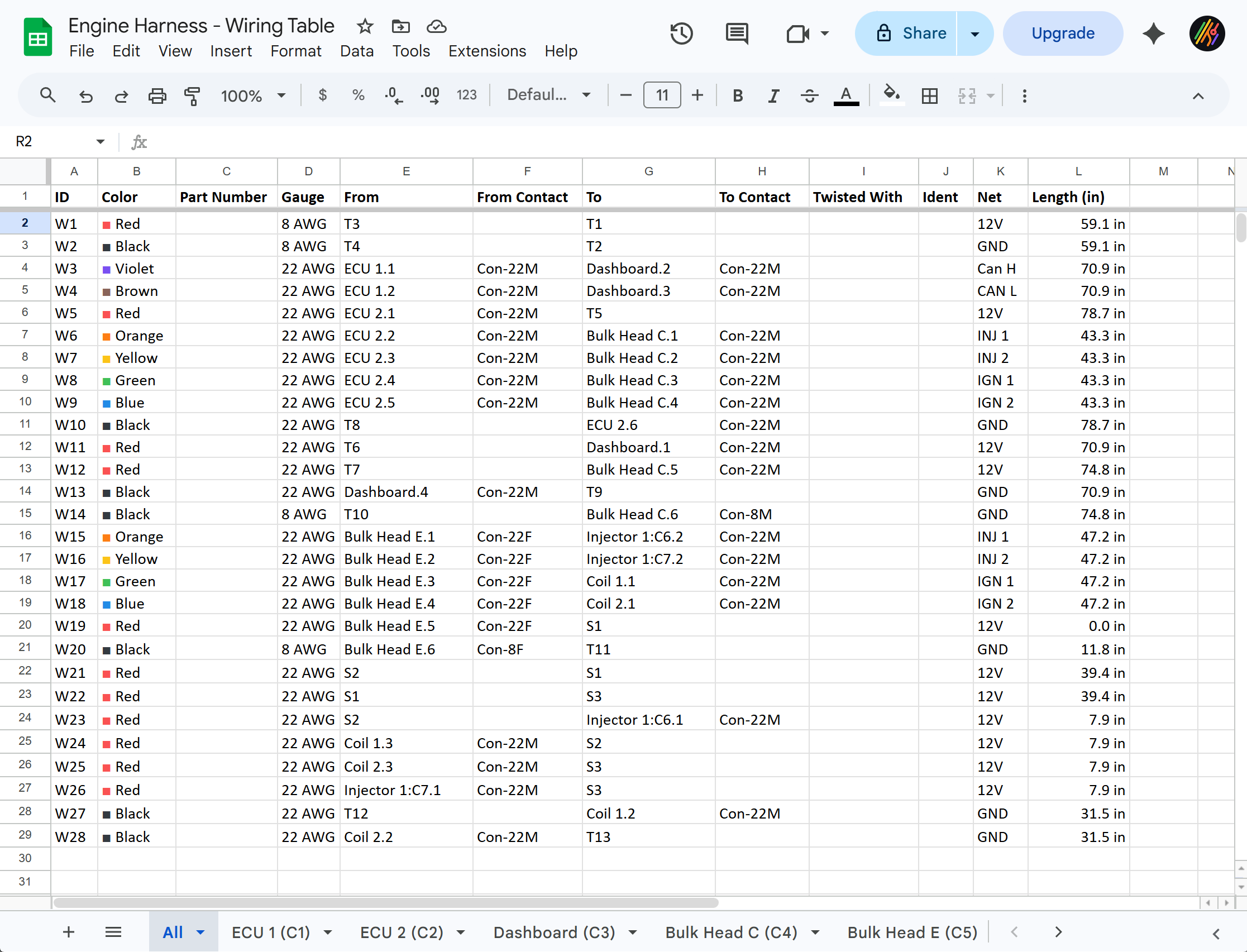
Exports an Excel .xlsx file based on the Connections view. The file contains a complete list of all connections, followed by individual sheets that break down connections per connector.
BOM
Exports a CSV version of the Parts view.
Local File
Saves the harness to your computer as a .harness file. The file contains all of the harness data, and it is the same format the Desktop App uses for local files.
See Local Files for how to open it again, and the JSON Format reference for what is inside.
Formboard Data
Available for a formboard harness. Exports a JSON file with everything needed to render the harness on a digital formboard, such as a projection based system, instead of printed panels.
The file contains the full formboard at physical scale: the panel configuration and pixel-to-length scale factor, every component with its position, rotation, and dimensions, the routed path of every bundle and wire, plus nets, coverings, notes, dimensions, and the part catalog. All geometry is relative to the top-left corner of the panel grid, matching the Formboard Panels PDF.